Showing posts with label mobile. Show all posts

Thursday, September 18, 2014

Text based adventures

When teaching English as a second language it can be challenging to make your students read or even write something. But when reading becomes an adventure, then... learning gets better!
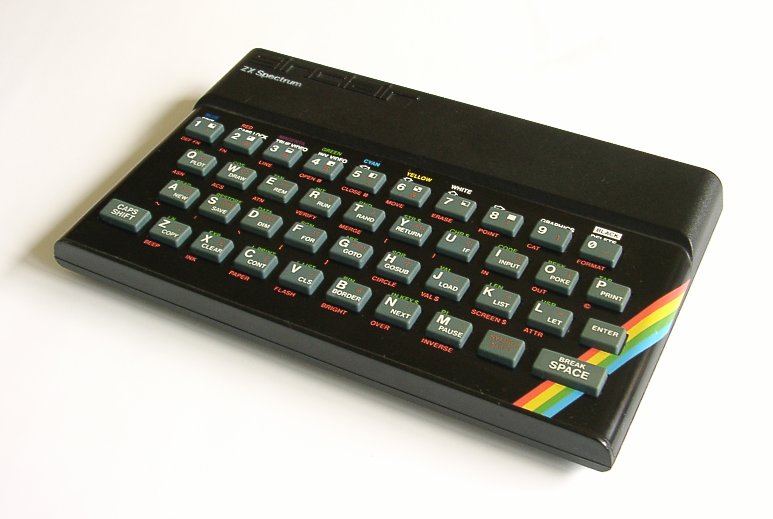


ZX Spectrum When it comes to reading you have many options. One of them, for common books reading, is explained in my other article the reading corner, which may be more appropriate for students inclined to books.

The other option is a game type called text adventure game. In it you have to go through many landscapes, houses, dark spots, castles… all described in pure text. And your actions are introduced likewise, typing text. Nowadays it’s not easy to find such jewels, as technology has given game developers complex tools to produce close to reality games. So, what’s the plan? Easy, we have to use an emulator, playable in a computer and in a mobile device.

Let me introduce you to ZXSpectrum, my first computer (yes, I’m 40). For this device tons of text adventures were developed. It happened the same for other contemporary computers, like Amstrad, Atari, Commodore… Some nostalgic people have generously maintained a website called World of Spectrum with an abundant  archive of games and a list of emulators for your computer.

But things get easier for you and your students. Forget about installing, downloading and executing anything when you can do it automatically with this marvelous android application: USP - ZX Spectrum Emulator. It not only emulates, it also has an integrated game downloading system.

Follow these simple steps:


  1. Start the application.
  2. Pop the menu (left button), and click on Open File.
  3. Choose the WOS tab and select a game.
  4. The RZX tab is for showing how to complete a game! It’ll give you a glimpse of what to do if you get stuck.
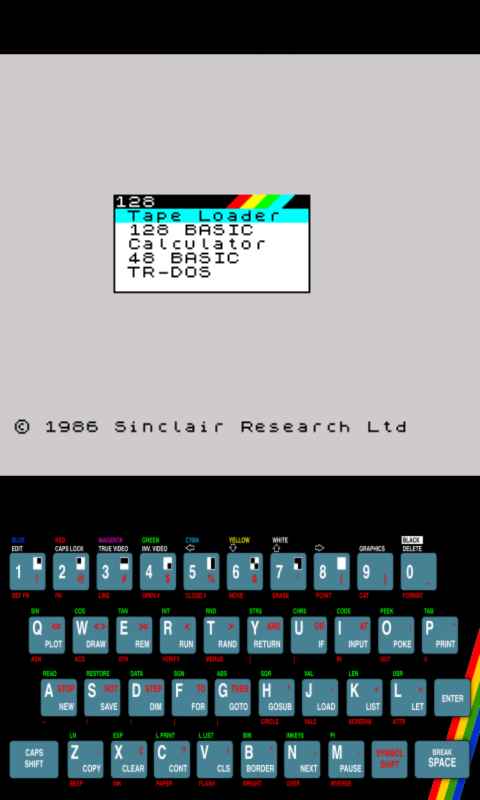
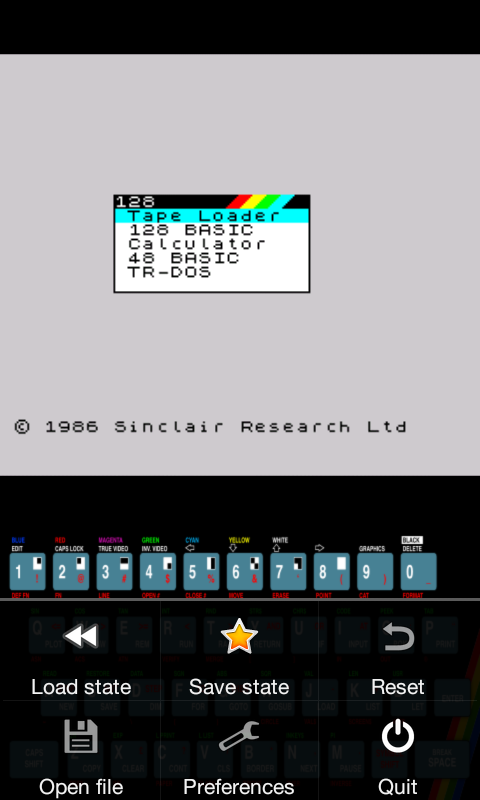
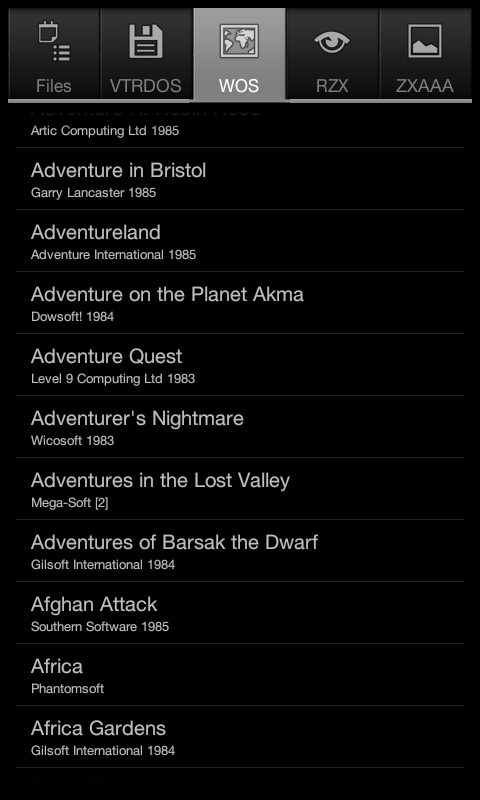
Screenshot_2014-09-17-23-45-17.png Screenshot_2014-09-17-23-45-27.png Screenshot_2014-09-17-23-45-48.png


The app will download the game and make it run. From that moment on use the keyboard to control the flow.
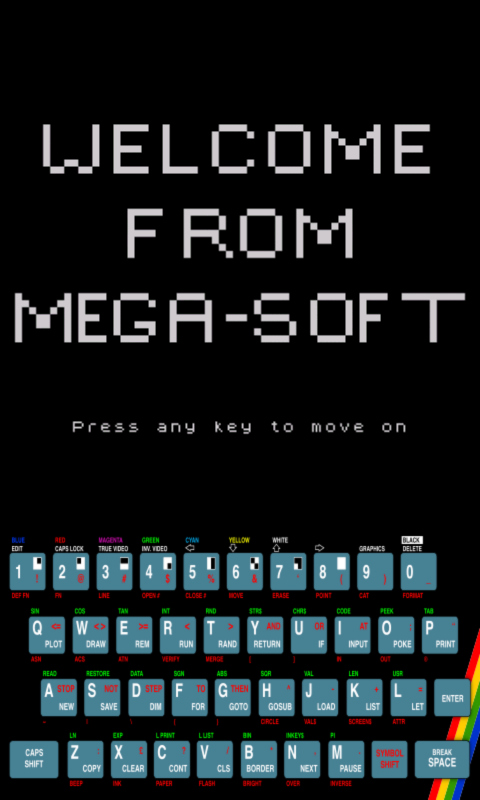
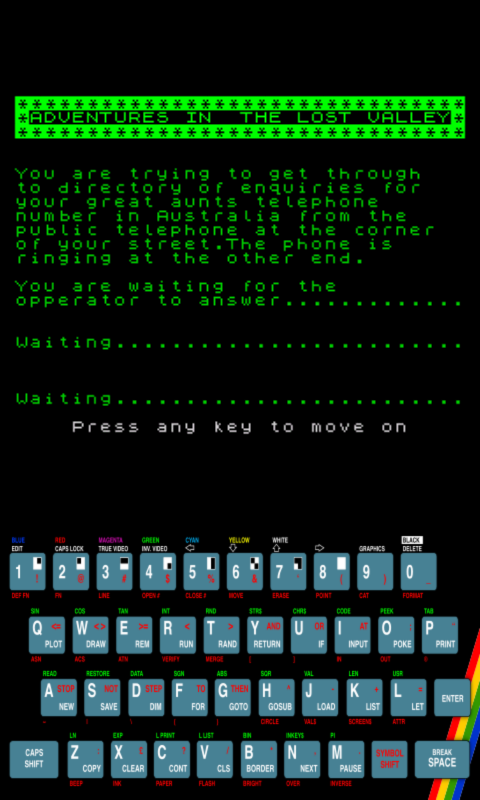
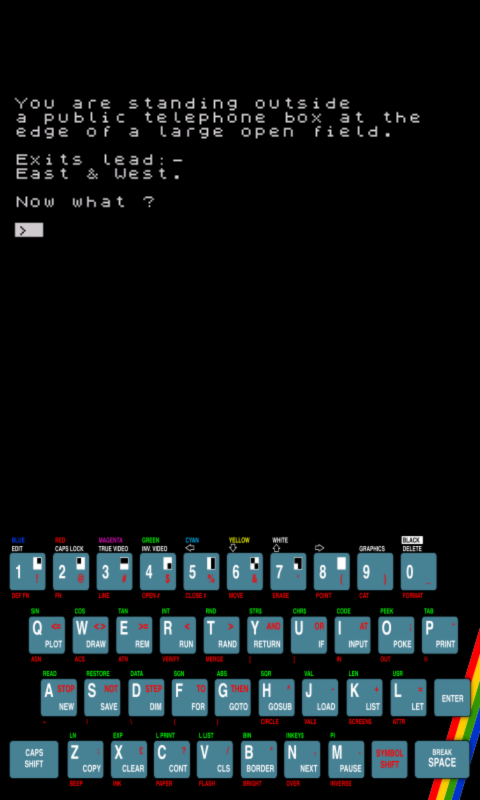
Screenshot_2014-09-17-23-46-03.png Screenshot_2014-09-17-23-46-18.png Screenshot_2014-09-17-23-46-23.png


Look at this video. I’ve used the RZX option so the game goes ahead on its own. Just relax and see how these games are played.


Now think a plan for your lessons:

  1. Make your students play for a week or so to see who goes farther.
  2. They’ll record words they didn’t previously know (e.g ColorDict).
  3. The same for collocations, expressions, etc.
  4. They’ll have to rank the game.
  5. After playing for some time they’ll write theirs (I’ll explain it in a future post).


As you can see it’s fantastic to go back in time to find resources for your classroom.

Saturday, September 13, 2014

Google Apps

Google Apps has finally made the difference. And with its offline applications your productivity will boost incredibly. Go on reading…


рівняннями, малюнками,Google Apps is a bunch of office-like applications, as docs, slides or sheets. If you have a Google account then you can go directly to drive.google.com and sign in. It's free!


Even though its functionality can look scarce in comparison with other applications, as OpenOffice, there are plenty of advantages to make the shift:


  1. Integrated tools: research, dictionary...
  2. Easy way to embed links, images, citations, graphs...
  3. Compatibility across Google apps.
  4. Compatibility across multiple devices (I'm writing this article using my mobile device while I'm lying on my towel tanning under the sun).
  5. Offline working mode.

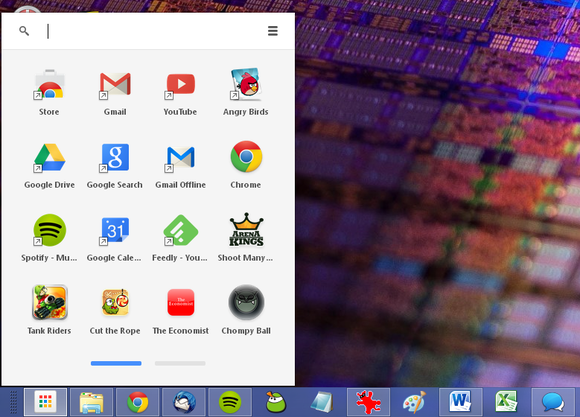
The offline functionality option has been, in my opinion, the key to beat Google’s competence. To enable it go to Chrome Web Store and look for offline apps. Install docs, sheets and slides (you could also install Gmail, Drive, Calendar, Drawings…).


chrome-launcher-in-use-100046778-large.png


From this moment on you can create,view and edit documents/slides/... using your Chrome browser. Offline applications are gathered inside a new icon on the bottom bar. Next time you go online Chrome will synchronise everything automatically. In the meanwhile your data will be saved to your computer.


As you can see it's a great way to work while going to the school by train, when at the beach... You don't have to worry any more about saving your work, taking your memory sticks with you, or even fear of losing your data.

Thursday, September 11, 2014

Remote control of devices


Didn’t you know you can control one computer through another? Even through your mobile device! And even use your webcam to check a place!


File:Google Chrome iconThe funny thing is that setting your computers up is really straightforward. You just need a Google account, Chrome and the Chrome Remote Desktop app.

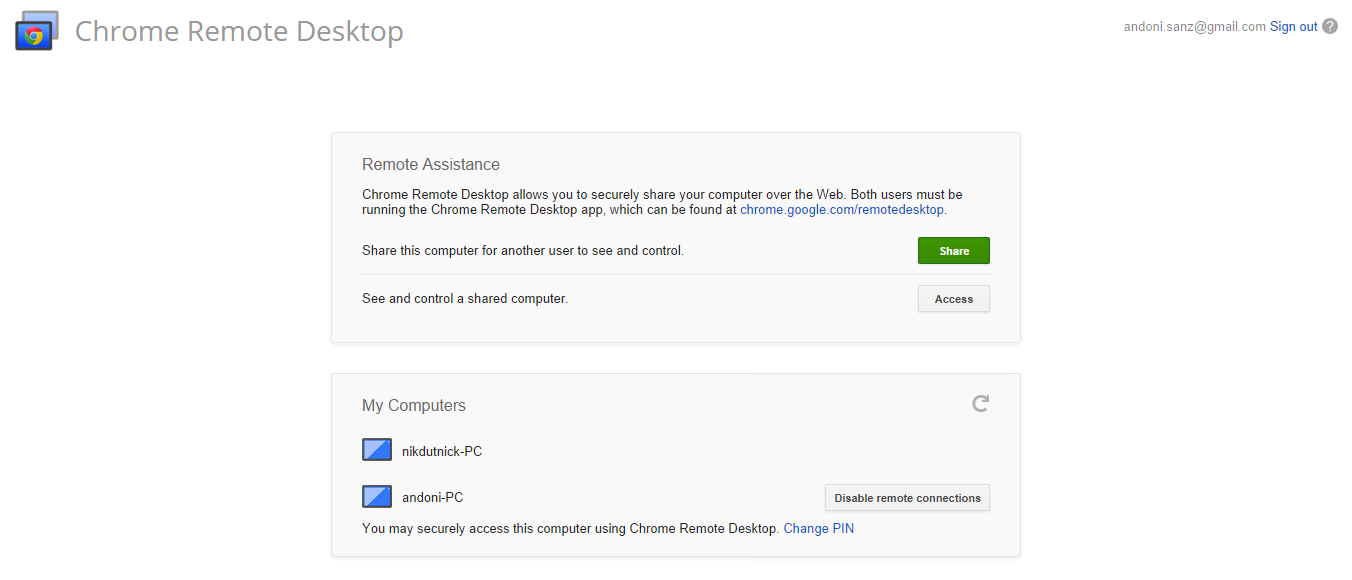
First of all, sign in inside Chrome with your Google account. Then install the app. You should see something similar to this (except for My Computers, which you are going to set up in the following steps):


Click on “Enable remote connections” (gray button in the bottom), and enter a PIN (you’ll need it to access the computer you're configuring from another one). Once you’ve done it you should see a list of “My Computers” with their names.

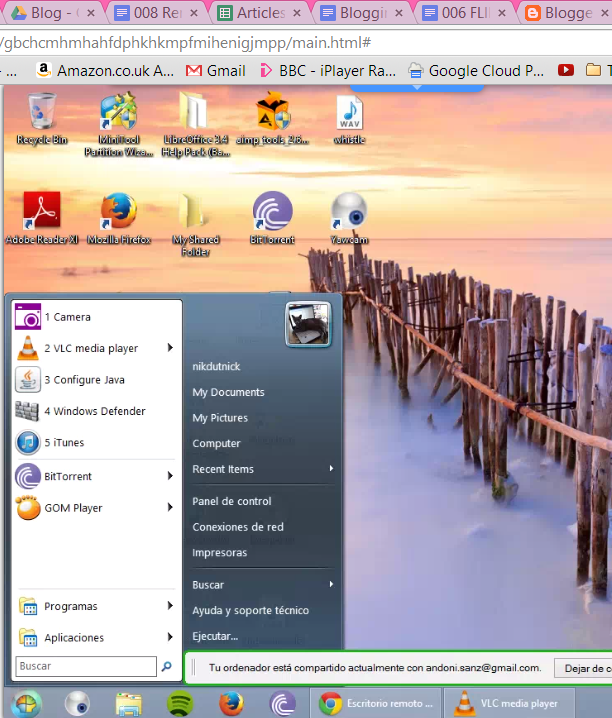
When you click on the other computer’s name you’ll be prompted to enter the PIN, and if everything has gone appropriately then you should see the other device’s screen:


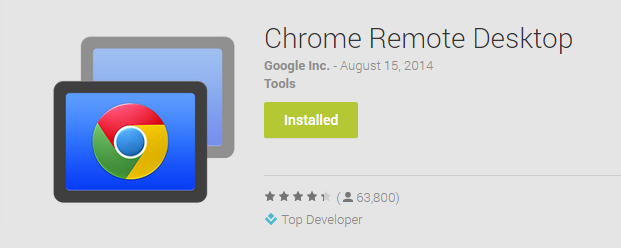
The interesting point is that you can do it from your mobile device with this app:


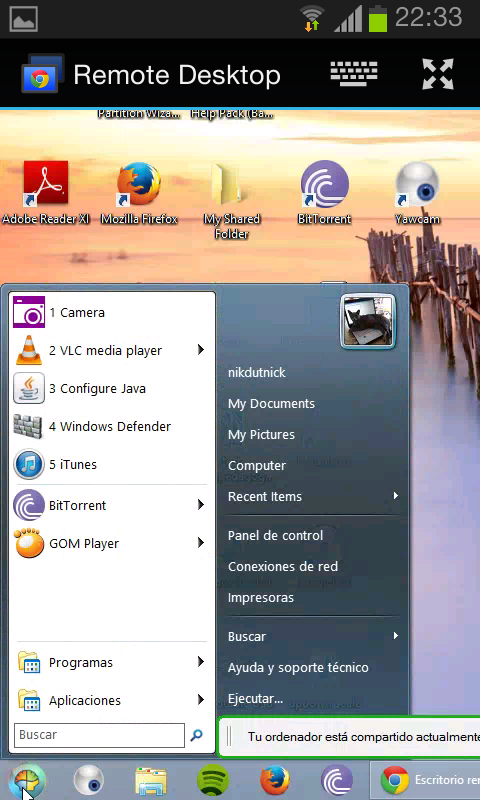
You’ll automatically see all the computers linked to your Google account. Just click on a name, type the PIN and start sliding your finger to make the mouse pointer follow it.

Screenshot_2014-09-11-22-33-00.pngScreenshot_2014-09-11-22-34-00.png


The uses for remote control are abundant:

  1. Laptop control inside the classroom (you’ll need different accounts, including a generic one for your classroom; remember you can quickly change accounts using the upper left head-like icon).
  2. CCTV: configure your vigilant laptop not to sleep or hibernate. Switch on your webcam (Yawcam is a free app for that), switch the screen off to save power and place the laptop in a strategic location to record that corner you are interested in. I did it when I went on vacation this summer, checking my house through my mobile device.
  3. Parental control.
  4. Server management.


Tuesday, November 26, 2013

Mobile scanning and cloud printing


Use your mobile device to rapidly scan and print through The Cloud.


Believe me, as a teacher I hate scanning things. First of all, you have to find a ready to use scanner at school; second, scan dozens of pages while bearing the annoying noise and unbelievable slowness of the scanner; and, third, edit the results in an easy to manage format (e.g, a PDF document). All of that can take you hours of hard work.


Fortunately, mobile applications have improved dramatically, and through their help and the so called Cloud we can make life easier. Let me explain how to scan and print several pages just in the blink of an eye, and how to directly print the resulting PDF through your mobile.


To do so you’ll need the following applications:


  1. MDScan (you have both the lite and pro versions), or a similar one: https://play.google.com/store/apps/details?id=com.stoiktechnology.mdscanlite


Once you have installed them have a look at this video for instructions:


Sunday, November 24, 2013

The reading corner


Transform your mobile device into an e-book, and read anywhere. With an integrated dictionary and a word-list manager make the best out of your reading sessions without spending any money in other devices.


Picture this: a student needs to read a tale in English. He’ll need the book, a dictionary and a notebook to write down the words he’d previously looked up. Anything more? Sure! A comfortable space, some school stuff (pens, markers…), a lamp and some silence, to say the least.

Can’t we ease things up? Of course yes, through the use of mobile devices. Now picture this other scene: the same student switches on his mobile, runs a reader application, loads a previously downloaded book, and starts reading. 

Everything is on his palm. He goes through the pages, finding words he doesn’t understand. He long-taps on them, and a built-in dictionary pops up to show their meaning and pronounce them. The word is automatically saved in a list, which can be shared with other applications for further review, or can be printed directly from the mobile. The student does all that with just one finger. Anyplace, anytime, with no restrictions.


Now, let’s do some magic in our mobiles to set things up. First of all, download and install these Android based applications:

  1. FBReader and its TTS engine (text to speech): https://play.google.com/store/search?q=fbreader
  2. Colordict and whatever thesaurus you’re interested in: https://play.google.com/store/search?q=colordict

Second, bookmark the following URL: www.gutenberg.org, you’ll need it to freely download books.

And third, let’s get started. Have a look at the following video (remember you can see it in full screen, and pause it for the details). 

Enjoy!