Didn’t you know you can control one computer through another? Even through your mobile device! And even use your webcam to check a place!
 The funny thing is that setting your computers up is really straightforward. You just need a Google account, Chrome and the Chrome Remote Desktop app.
First of all, sign in inside Chrome with your Google account. Then install the app. You should see something similar to this (except for My Computers, which you are going to set up in the following steps):
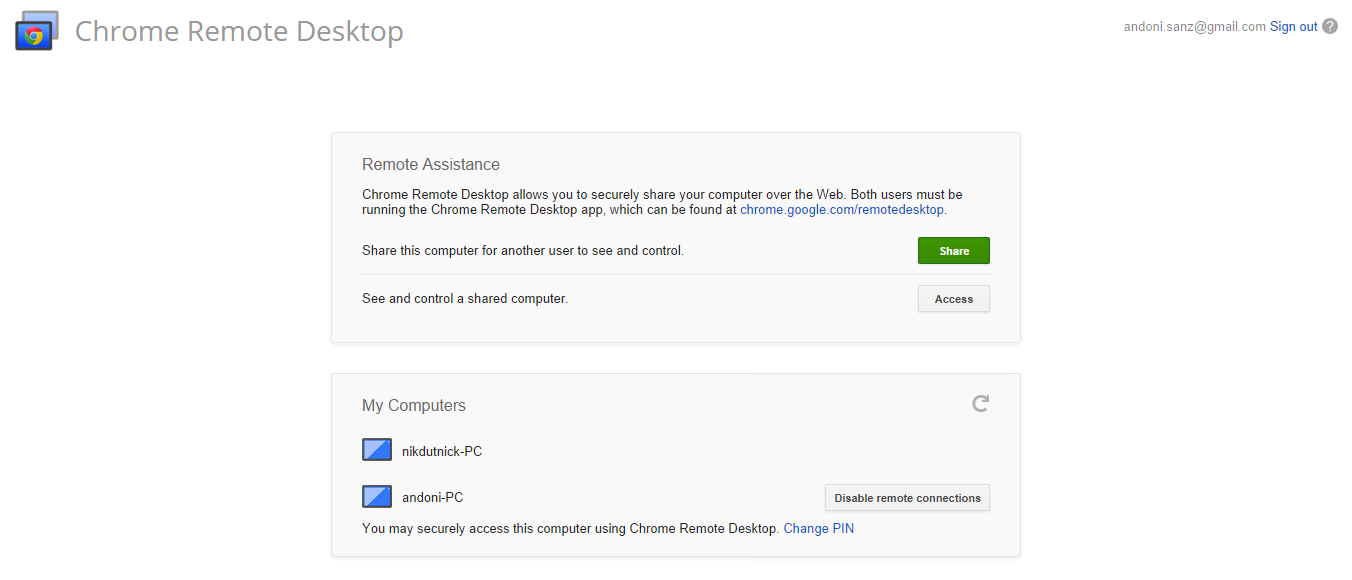
Click on “Enable remote connections” (gray button in the bottom), and enter a PIN (you’ll need it to access the computer you're configuring from another one). Once you’ve done it you should see a list of “My Computers” with their names.
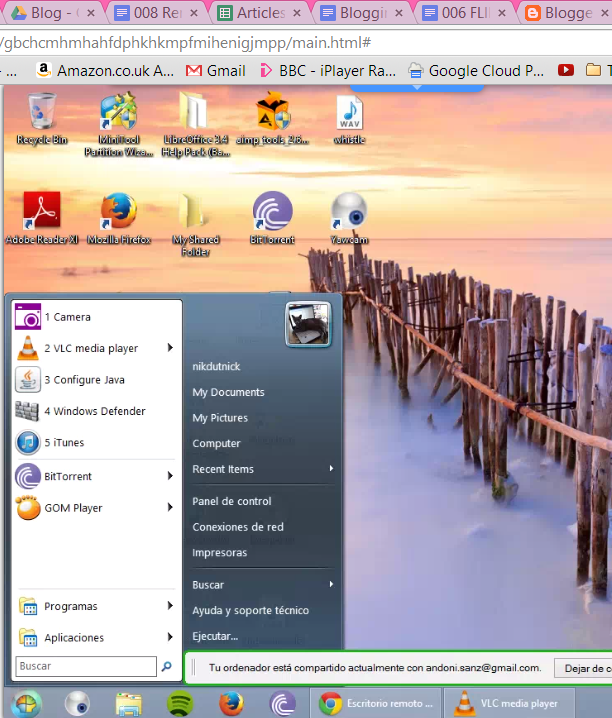
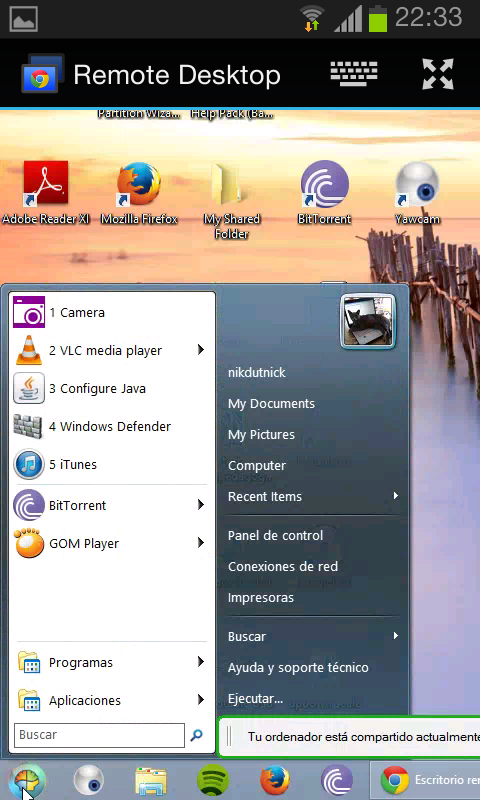
When you click on the other computer’s name you’ll be prompted to enter the PIN, and if everything has gone appropriately then you should see the other device’s screen:
The interesting point is that you can do it from your mobile device with this app:
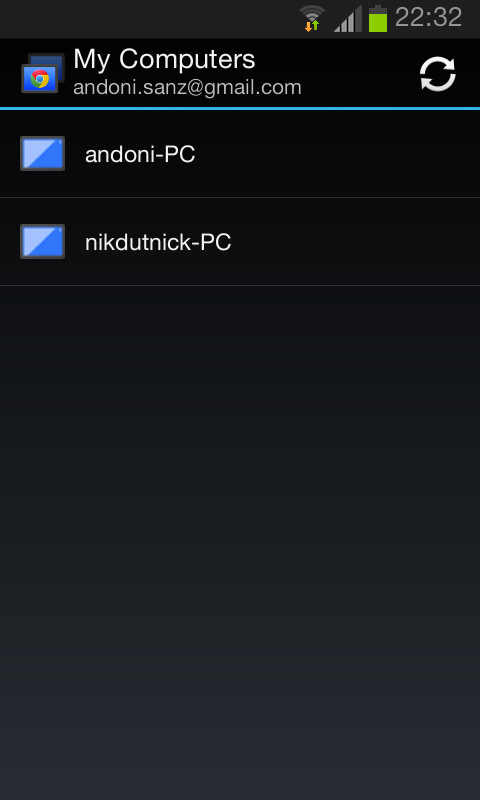
You’ll automatically see all the computers linked to your Google account. Just click on a name, type the PIN and start sliding your finger to make the mouse pointer follow it.
The uses for remote control are abundant:
- Laptop control inside the classroom (you’ll need different accounts, including a generic one for your classroom; remember you can quickly change accounts using the upper left head-like icon).
- CCTV: configure your vigilant laptop not to sleep or hibernate. Switch on your webcam (Yawcam is a free app for that), switch the screen off to save power and place the laptop in a strategic location to record that corner you are interested in. I did it when I went on vacation this summer, checking my house through my mobile device.
- Parental control.
- Server management.