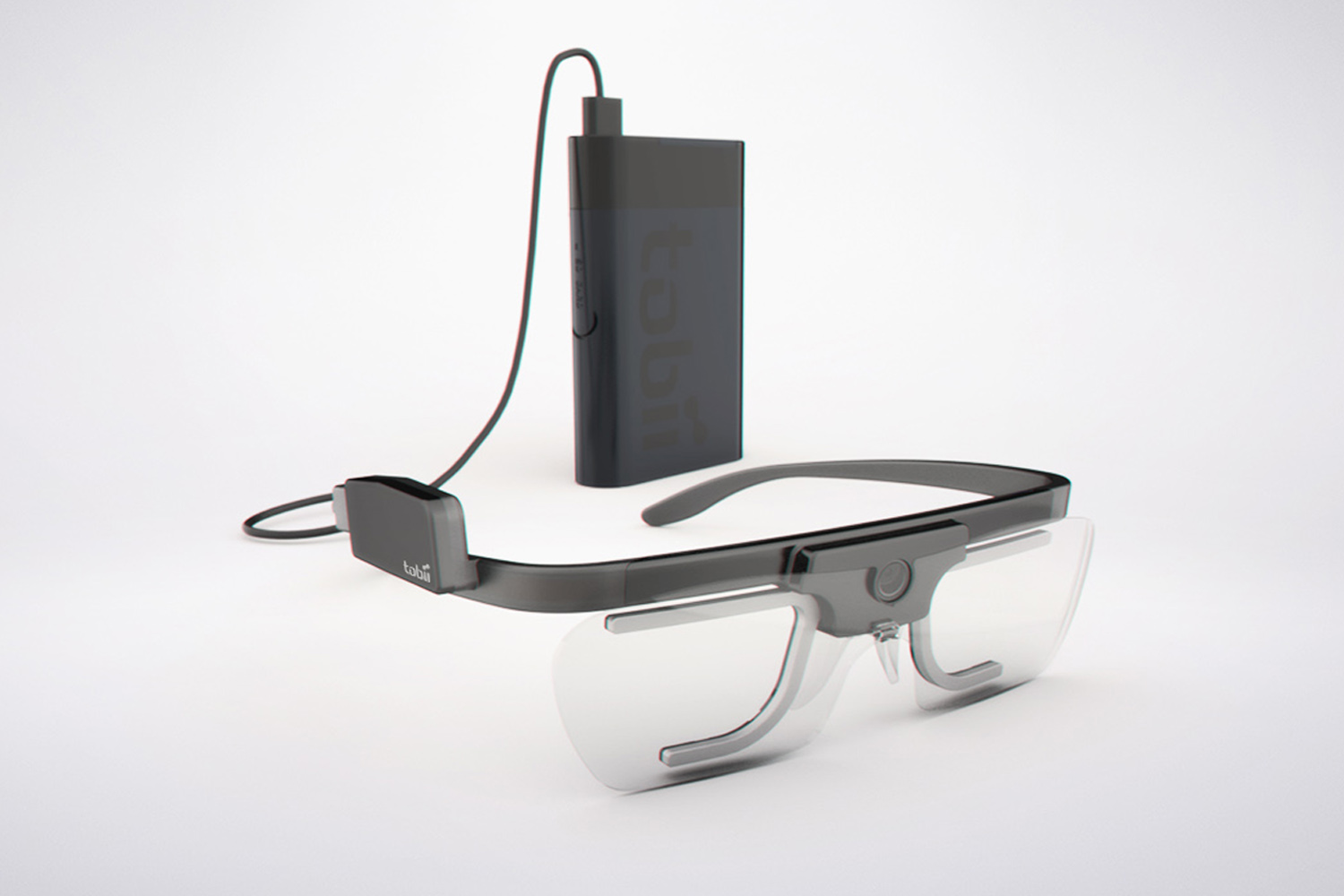
EdTech is about to explode. The coming technology and the new trends on the rise can’t but forecast an extensive technology adoption in schools all around the globe. Specific apps, systems, codable gadgets and the adaptation of general use elements to the school environment are engaging teachers and opening up the way to new pedagogical approaches. And while we are scratching the surface of some of them, others have just started to buzz persistently. Read the whole story in Edtechreview.in http://edtechreview.in/trends-insights/trends/1832-edtech-trends-for-the-coming-years
Cloud Printers ease people's lives as you can print from any devices connected to the Internet in an easy and clean manner.
Setting up a Cloud Printer is a really easy thing if you know how to do it! To set things up we need a printer connected to a computer (let's call it PR), and another computer from where to print (CL). Both have to be connected to the Internet.
4. Go to settings, and type in the search box “print”. The option will appear immediately. Chrome will search for all the devices, your printer included. Select what interests you most (you can also add mobile devices, Google Drive...).
5. Now, in PR navigate to: https://www.google.com/cloudprint. You should see the previously installed printer. Click on the printer and push the sharing button. In the new window add your regular gmail account (the one you'll be using in CL).
From that moment on, everything’s set up in your “server”. Both the computer and the printer should be switched on in order to be able to print. It’s not necessary for Chrome to be opened all the time.
6. In your regular laptop do the same as in #1, #2 and #3.
7. Open your Gmail and you should see a post inviting you to accept the printer. Open it and click on accept. Once you have done that you should see it on your Chrome’s settings (point #4).
Use your mobile device to rapidly scan and print through The Cloud.
Believe me, as a teacher I hate scanning things. First of all, you have to find a ready to use scanner at school; second, scan dozens of pages while bearing the annoying noise and unbelievable slowness of the scanner; and, third, edit the results in an easy to manage format (e.g, a PDF document). All of that can take you hours of hard work.
Fortunately, mobile applications have improved dramatically, and through their help and the so called Cloud we can make life easier. Let me explain how to scan and print several pages just in the blink of an eye, and how to directly print the resulting PDF through your mobile.